
Managing a Workflow Quick Measure
Watch the video to know how to manage the Workflow Quick Measure.
You can also follow the below steps to manage a Workflow Quick Measure:
1) Click on Workflows tile in the Workflow & Automation section of the Configuration Area.
2) Select your desired workflow from the list and scroll down to the Workflow Quick Measure section, as shown in the below screen.

3) Now, click on the Title (hyperlink) of an existing Workflow Quick Measure to open it in edit mode, as shown in the below screen.
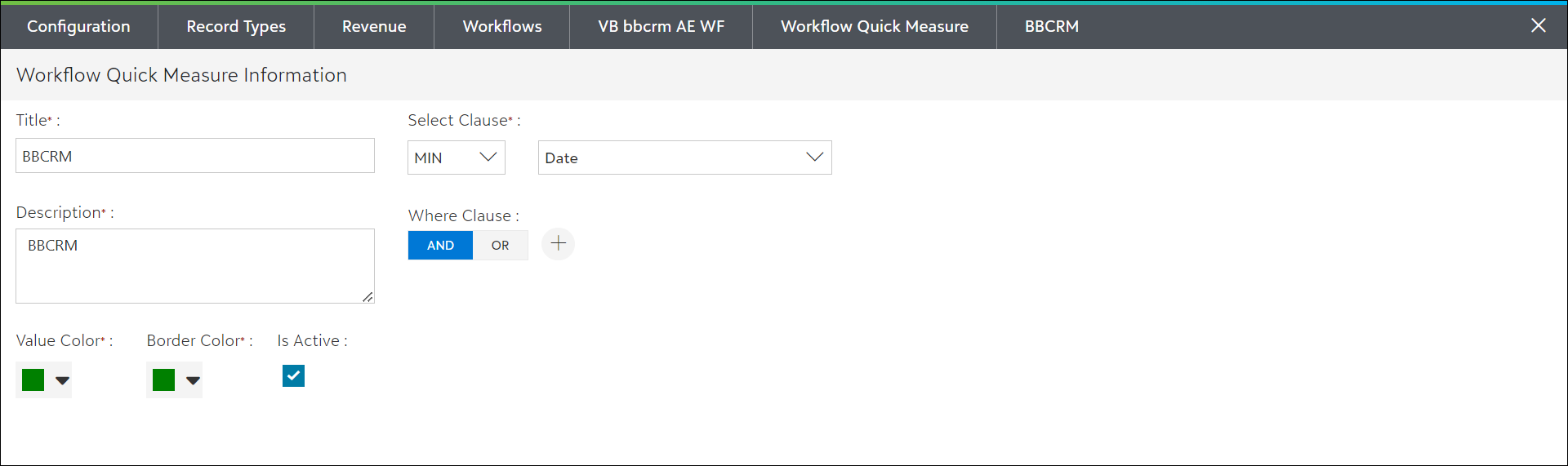
4) To save the changes, you can click on the “X” in the upper right corner, press the Esc key on the keyboard, or click on the Workflow Quick Measure from the breadcrumbs available in application bar.
5) After updating, it will show the success/failure message on the top-right corner of the screen, as shown below.
